
AUTOMATIC MIXING. FREE. FOREVER.
The spacebetween songs.
Your music. A different flow.
Keep your favourite player. Let compatible musical parts
meet in one continuous listening session.
Windows 10 / 11 · No NU:BIQ account · No subscription
01 / A DIFFERENT KIND OF HANDOVER
Part to part.
Then into the next.
An offline audio module prepares the musical layers ahead.
Beat, phrase and harmony checks guide the parts that fit.
Vocals
The voice keeps its story.
Drums
The pulse carries the moment.
Bass
A new foundation moves in.
Instruments
Melodies find room to meet.
Compatible passages overlap, with different parts arriving in their own time.
Exchanges depend on suitable prepared material. Some passages stay with the original source.
02 / PRESS PLAY
Meet your next flow.
The idea, in sound and motion.
The YouTube player loads when you press play. Watch on YouTube
03 / FIND YOUR EXPRESSION
A little different.
Or a lot.
The same music. Three ways to let it unfold.
A gentler meeting.
Borrow less from the next song, with restrained musical handovers that keep the current track close.
Explore the expressions here; choose your setting in the app.
04 / LESS FRICTION. MORE FEELING.
Simple on the surface.
More when you want it.
FLOW for everyday listening. LAB for the details.
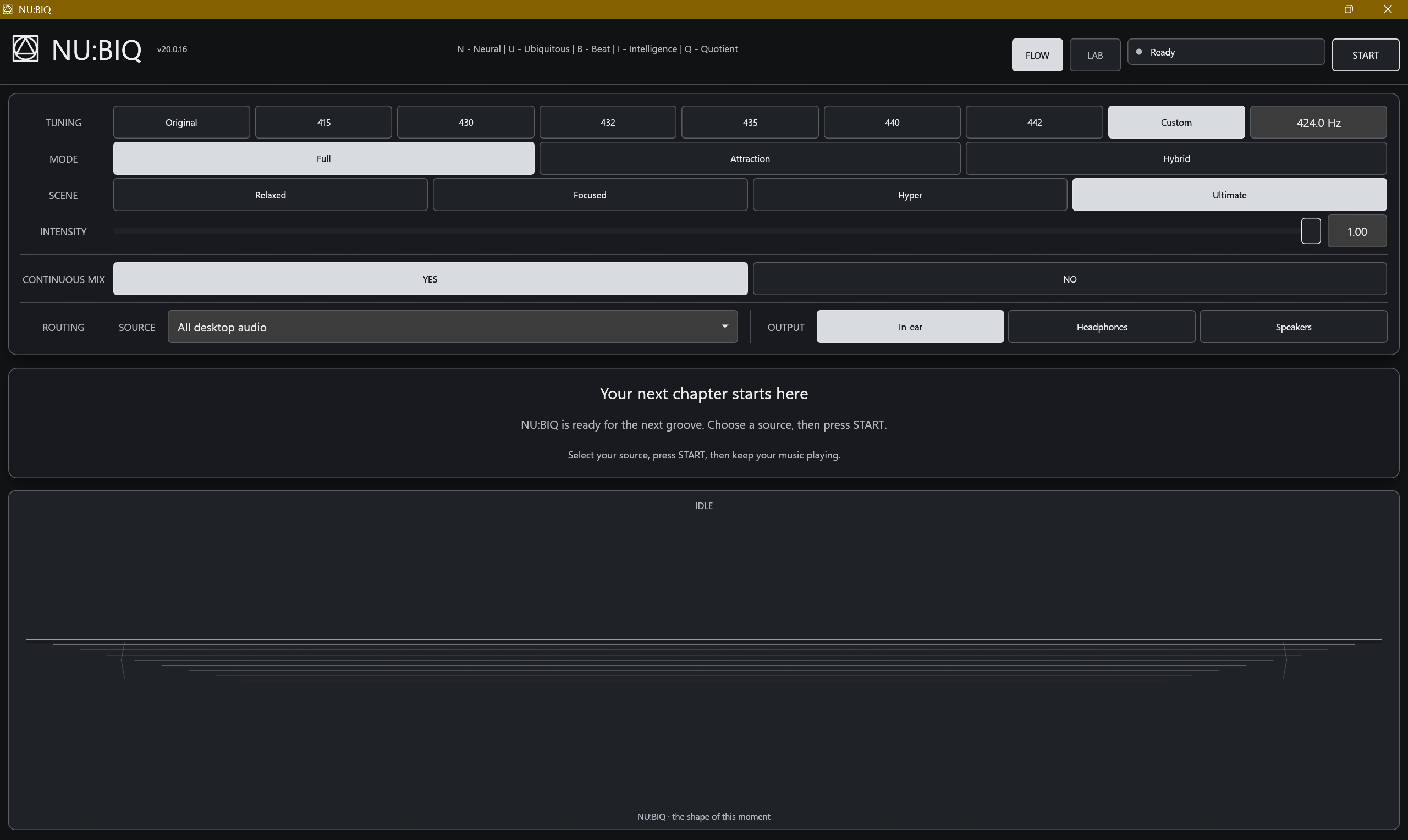
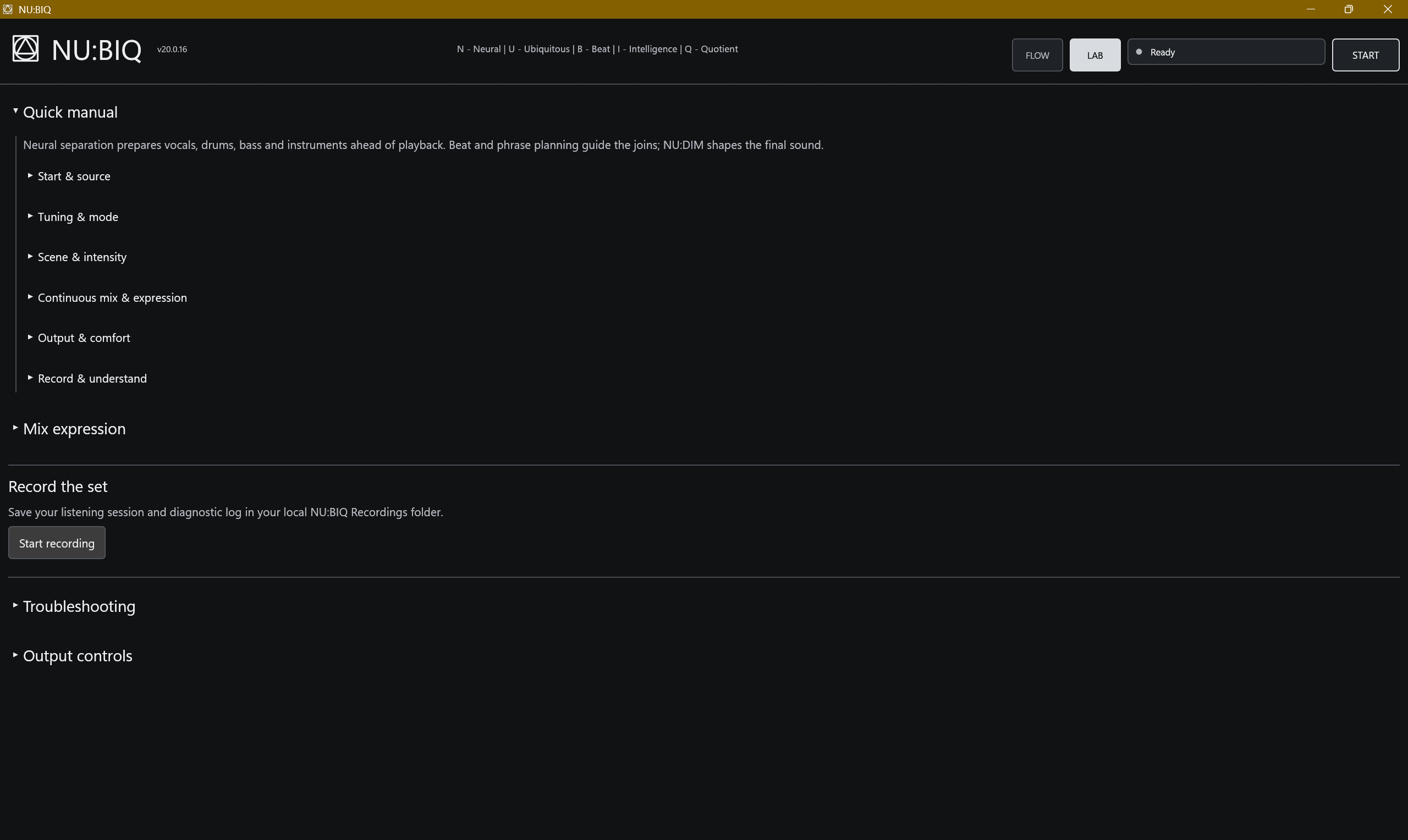
Find your reference.
Stay with Original, choose a tuning reference or set your own. Explore Full, Attraction and Hybrid modes.
Set the scene.
Relaxed, Focused, Hyper or Ultimate. Adjust the intensity and choose an in-ear, headphones or speakers profile.
Save your session.
Record the final stereo mix as a WAV, with local diagnostics. The Store edition saves it in your Music folder.
05 / YOUR QUEUE. YOUR COMPANY. YOUR EVENING.
Bring the music.
Stay for the moment.
A solo listening session. Friends coming over.
A playlist everyone adds to. Less mixing duty, more being there.
- 01
Play your music.
Queue songs in your usual Windows player. NU:BIQ works with the audio you choose.
- 02
Choose the source.
Select the player or desktop audio. Turn Continuous Mix on, then press START.
- 03
Give it a moment.
Keep your source playing. NU:BIQ listens ahead to prepare the parts you’ll hear next.
Playback intentionally runs behind your source. Initial preparation can take several minutes, depending on your computer. Repeated skipping can extend preparation; suitable material guides which exchanges happen.
06 / THE USEFUL DETAILS
Before you press play.
Free. As in, forever?
Yes. NU:BIQ is free to download and use, forever. No NU:BIQ account, subscription or in-app purchase is needed. Your music player’s own terms and subscriptions still apply.
Does it come with music?
Bring your own music. NU:BIQ processes audio playing in a Windows application or the selected desktop mix. It does not include a music catalogue, streaming subscription or collaborative playlist service.
Why does playback run behind my player?
The listening reserve gives the offline modules time to prepare upcoming musical passages. Leave your source playing and allow several minutes at the beginning. The amount of preparation depends on your computer and the music.
Will every song exchange parts?
Exchanges depend on suitable, prepared material and available computer resources. Beat, phrase and harmony checks guide compatible passages; some sections keep the original-source playback. Continuous mixing does not promise an exchange at every boundary.
What computer do I need?
A fully updated Windows 10 version 2004 or later, or Windows 11, on a 64-bit Intel or AMD PC. You’ll need compatible DirectX 12 graphics with an up-to-date driver and an active audio output.
For more preparation headroom, we recommend a modern Core i5 / Ryzen 5-class processor, eight or more logical threads, 32 GB RAM and SSD storage. These are recommendations, not a measured minimum specification.
Does my audio leave my computer?
NU:BIQ’s audio processing runs locally with its included modules. Audio and recordings are not automatically uploaded. A streaming player may still need internet. If you choose All desktop audio, notifications and other sounds in that mix can also be processed or recorded.
Where does the recording go?
In the Microsoft Store edition, the stereo WAV and associated diagnostics are saved in Music → NUBIQ → Recordings. The standalone edition uses its local NU:BIQ Recordings folder. Stop recording to finish the files.
YOUR NEXT CHAPTER STARTS HERE
Press play.
Let it flow.
Automatic mixing. Free. Forever.
Windows 10 / 11 · x64 · Your player supplies the music
Prefer the standalone setup? Explore GitHub releases